IoT systems usually have two very different access paths.
The first path is ingestion. Devices, gateways, or edge services publish telemetry into an application backend, a message broker, a stream, or an IoT platform. That backend validates and stores device data.
The second path is operational data access. After telemetry lands in a database, humans and internal applications may need to query it during incidents, support investigations, or rollout monitoring.
This post uses IoT as a concrete example for combining IAM authentication and Oracle Database proxy authentication in Database Tools. The same pattern applies to any private operational database where you want IAM to authenticate the caller, but a stable database persona to own the SQL privileges.
Use Case
Assume a utility company runs a smart meter platform. Meters and field gateways publish heartbeats, meter readings, firmware status, outage signals, and command responses into a backend ingestion service. That service writes operational data into a private Autonomous Database.
During an outage, the IoT operations team needs to answer questions such as:
- Which meters stopped reporting in the last 15 minutes?
- Which gateways are still online?
- Did a firmware rollout correlate with failed heartbeats?
- Which payloads failed validation?
- Did a command reach the target device, and did the device respond?
The platform team has a few constraints:
- This example avoids distributing database credentials to devices.
- The database must remain private.
- Operators should not manage wallets, token files, bastion access, or local SQL client setup.
- Operators should authenticate with OCI IAM.
- Database privileges should stay attached to a stable read-only operations persona.
- Database auditing should show both the operations persona and the IAM-authenticated proxy identity.
The desired model is:
- Devices publish telemetry to the ingestion service.
- The ingestion service writes to the private database.
- Operators use Database Tools for SQL access.
- Database Tools authenticates through OCI IAM as
IOT_OPS_IAM. - Oracle Database proxy authentication lands the session as
IOT_OPS_RO. IOT_OPS_ROcan query only approved operational views.
The flow looks like this:
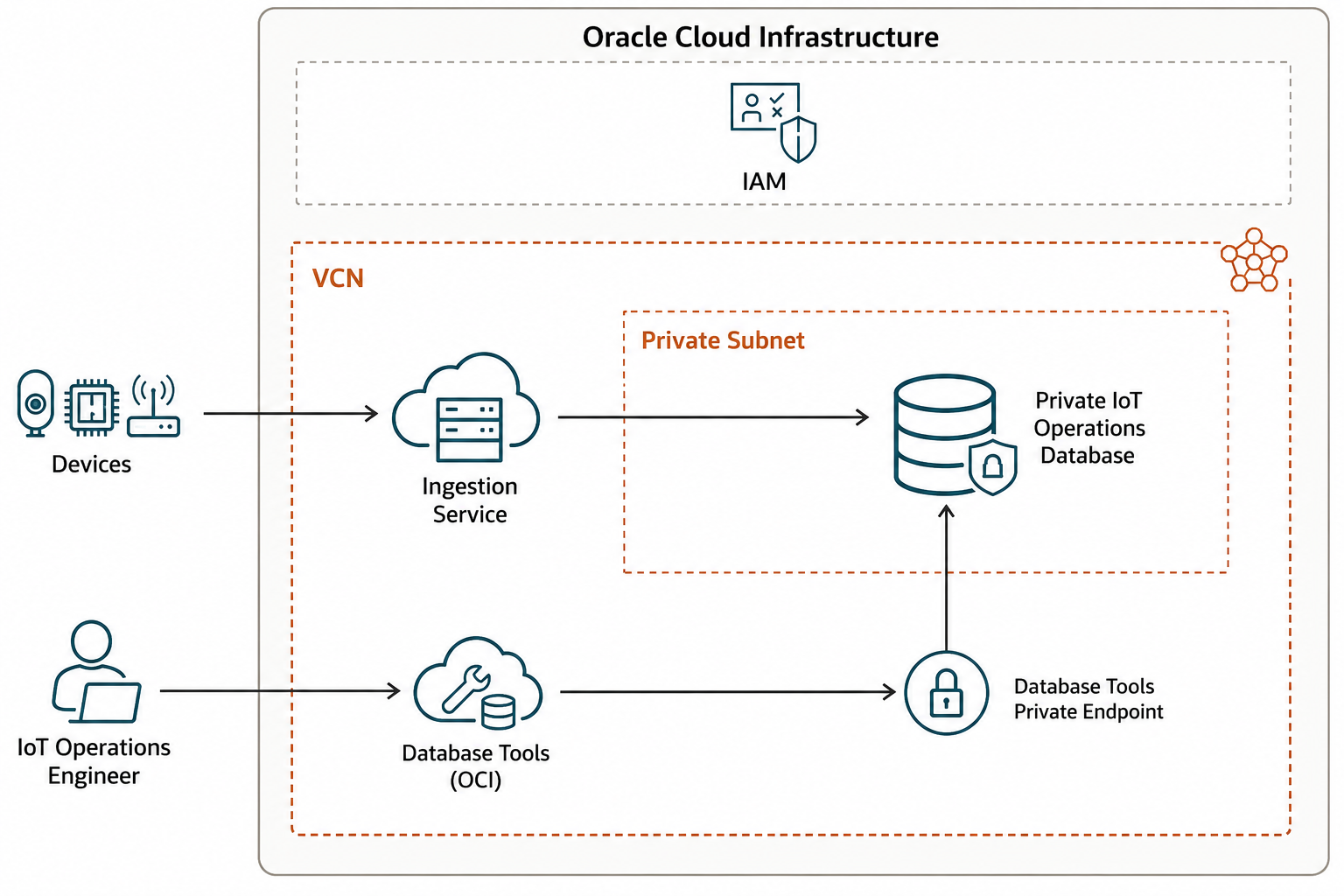
That gives the platform team one managed SQL access path without turning every operator laptop into a database access environment.
Why IAM and Proxy Auth Together
IAM authentication answers:
- Who is allowed to authenticate through Database Tools?
Proxy authentication answers:
- Which database user should the session run as?
For this use case, those are different users:
OCI IAM group -> IOT_OPS_IAM -> IOT_OPS_ROIOT_OPS_IAM is the global database user mapped to the IAM group. IOT_OPS_RO is the proxy client user with read-only grants on operational views.
This keeps access management clean:
- Add or remove engineers in OCI IAM.
- Keep SQL grants on
IOT_OPS_RO. - Keep device ingestion separate from human SQL access.
- Audit the database session as the read-only operations persona while preserving the proxy user.
Before You Start
This post builds on the IAM-authenticated Database Tools setup from Integrating IAM Authentication with OCI Database Tools Connections, but includes the temporary admin setup connection so you can follow this example directly.
You need:
- OCI CLI configured for the tenancy and region.
- A private Autonomous Database or Oracle Database containing IoT operational data.
- A Database Tools private endpoint in the database network path.
- OCI Vault secrets for the admin setup password and wallet if your connection requires them.
- Permission to create or use the IAM group for IoT operations engineers.
- Permission to create or update the IAM policy for that group, or an existing policy that grants equivalent access.
- Permission to enable OCI IAM external authentication for the database, or an existing setup where it is already enabled.
jqinstalled locally.
This post reuses the same CLI style as the IAM-auth walkthrough, but changes the database users and connection shape to use proxy authentication.
Variables
Replace these values for your environment:
export OCI_CLI_PROFILE="<oci-profile>"
export OCI_CLI_REGION="<oci-region>"
export OCI_CLI_AUTH="<cli-auth>"

export TENANCY_OCID="ocid1.tenancy.oc1..example"
export COMPARTMENT_OCID="ocid1.compartment.oc1..example"
export DATABASE_COMPARTMENT_NAME="MyComp"
export DATABASE_OCID="ocid1.autonomousdatabase.oc1..example"
export PRIVATE_ENDPOINT_ID="ocid1.databasetoolsprivateendpoint.oc1..example"
export REGIONAL_WALLET_SECRET_OCID="ocid1.vaultsecret.oc1..regional-wallet"
export ADMIN_DB_PASSWORD_SECRET_OCID="ocid1.vaultsecret.oc1..admin-password"

export DB_CONNECT_STRING='(description=(retry_count=3)(retry_delay=3)(address=(protocol=tcps)(port=1522)(host=aaabbccc.adb.us-ashburn-1.oraclecloud.com))(connect_data=(service_name=iotops_low.adb.oraclecloud.com))(security=(ssl_server_dn_match=yes)))'
export DB_TOKEN_SCOPE="urn:oracle:db::id::$COMPARTMENT_OCID::$DATABASE_OCID"

export ADMIN_DB_USER="ADMIN"
export ADMIN_CONNECTION_NAME="iot-ops-admin-setup"
export IOT_APP_SCHEMA="ADMIN"
export IAM_GROUP_NAME="iot-operations"
export IAM_GROUP_DESCRIPTION="IoT operations engineers who can use Database Tools IAM token connections"
export IOT_OPERATOR_USER_OCID="ocid1.user.oc1..example"
export IAM_POLICY_NAME="iot-ops-database-tools-token-access"
export IAM_PROXY_DB_USER="IOT_OPS_IAM"
export PROXY_CLIENT_DB_USER="IOT_OPS_RO"
export PROXY_CLIENT_TEMP_PASSWORD="<strong-temporary-password>"
export IOT_OPS_CONNECTION_NAME="iot-ops-proxy-readonly"
The sample uses ADMIN as IOT_APP_SCHEMA so the demo views can be created in a clean database without a separate application schema. For production, set this to the schema where you maintain support or reporting views.
Build common JSON values if you need a wallet-backed connection:
export KEY_STORES_JSON="$(
  jq -nc \
    --arg walletSecretId "$REGIONAL_WALLET_SECRET_OCID" \
    '[{
      keyStoreType: "SSO",
      keyStoreContent: {
        valueType: "SECRETID",
        secretId: $walletSecretId
      },
      keyStorePassword: null
    }]'
)"
If your database connection does not use a wallet secret, omit the --key-stores option in the connection creation commands.
Step 1: Create the IAM Group
Create the IAM group for the operations engineers, or reuse an existing group if your organization already manages one. OCI IAM groups are created in the tenancy, which is the root compartment.
export IAM_GROUP_ID="$(
  oci iam group list \
    --compartment-id "$TENANCY_OCID" \
    --name "$IAM_GROUP_NAME" \
    --lifecycle-state ACTIVE \
    --all \
    --query "data[0].id" \
    --raw-output
)"

if [ -z "$IAM_GROUP_ID" ] || [ "$IAM_GROUP_ID" = "null" ]; then
  export IAM_GROUP_ID="$(
    oci iam group create \
      --compartment-id "$TENANCY_OCID" \
      --name "$IAM_GROUP_NAME" \
      --description "$IAM_GROUP_DESCRIPTION" \
      --wait-for-state ACTIVE \
      --query "data.id" \
      --raw-output
  )"
fi
Confirm the group ID:
echo "$IAM_GROUP_ID"Add the operators who should use this connection to the group. Run this once for each operator user OCID:
oci iam group add-user \
  --group-id "$IAM_GROUP_ID" \
  --user-id "$IOT_OPERATOR_USER_OCID"
Confirm the group membership:
oci iam group list-users \
  --group-id "$IAM_GROUP_ID" \
  --query "data[].{name:name,id:id}" \
  --output table
If your tenancy uses identity domains or an external identity provider, create or map the group through that identity system and use the resulting OCI group name in the policy.
Step 2: Create the IAM Policy
Create an IAM policy that lets the intended group use Database Tools connections for the target database. Before the token-authenticated connection can validate or execute SQL, the IAM group needs this permission. It includes the database token DB_CONNECT permission used by IAM database authentication.
For a public example, prefer a group-based policy scoped to the target database:
allow group iot-operations to use database-connections in compartment MyComp
  where target.database.id = '<database-ocid>'
For quick testing you may see examples using any-user, but that is broader than most production setups need:
allow any-user to use database-connections in compartment MyComp
  where target.database.id = '<database-ocid>'
Use the narrower policy unless you have a specific reason not to. The policy statement uses the target database compartment name, not the compartment OCID.
Create the policy in the root compartment by passing the tenancy OCID to --compartment-id:
export IOT_OPS_POLICY_STATEMENTS="$(
  jq -nc \
    --arg groupName "$IAM_GROUP_NAME" \
    --arg compartmentName "$DATABASE_COMPARTMENT_NAME" \
    --arg databaseId "$DATABASE_OCID" \
    '[("allow group " + $groupName + " to use database-connections in compartment " + $compartmentName + " where target.database.id = \u0027" + $databaseId + "\u0027")]'
)"

export IAM_POLICY_ID="$(
  oci iam policy create \
    --compartment-id "$TENANCY_OCID" \
    --name "$IAM_POLICY_NAME" \
    --description "Allow IoT operations engineers to use Database Tools IAM token connections for the IoT operations database" \
    --statements "$IOT_OPS_POLICY_STATEMENTS" \
    --wait-for-state ACTIVE \
    --query "data.id" \
    --raw-output
)"
If an administrator already created an equivalent policy, you can skip this step. For this walkthrough, the IAM policy is restricted to one database with target.database.id, so DB_TOKEN_SCOPE must use the database compartment OCID and database OCID in the form urn:oracle:db::id::<compartment-ocid>::<database-ocid>.
Before validating the IAM-authenticated connection, also check the IAM user’s Database Username setting in the OCI Console under User > Saved Password > Database Username. For the shared group mapping used in this post, the value should match IOT_OPS_IAM for users who belong to iot-operations. If this value is not set, OCI uses the IAM user’s standard user name as the fallback, which can make validation fail even when the Database Tools connection is otherwise configured correctly.
Step 3: Create a Temporary Admin Setup Connection
If you already have a privileged Database Tools connection from the previous IAM authentication post, export its OCID as ADMIN_CONNECTION_ID and skip this step.
Otherwise, create a temporary setup connection with a privileged database user. For Autonomous Database, that user is commonly ADMIN.
export ADMIN_CONNECTION_ID="$(
  oci dbtools connection create-oracle-database \
    --compartment-id "$COMPARTMENT_OCID" \
    --display-name "$ADMIN_CONNECTION_NAME" \
    --connection-string "$DB_CONNECT_STRING" \
    --user-name "$ADMIN_DB_USER" \
    --authentication-type PASSWORD \
    --user-password-secret-id "$ADMIN_DB_PASSWORD_SECRET_OCID" \
    --private-endpoint-id "$PRIVATE_ENDPOINT_ID" \
    --key-stores "$KEY_STORES_JSON" \
    --runtime-support SUPPORTED \
    --runtime-identity AUTHENTICATED_PRINCIPAL \
    --wait-for-state SUCCEEDED \
    --query 'data.resources[?"entity-type" == `databasetoolsconnection`].identifier | [0]' \
    --raw-output
)"
Confirm the connection ID:
echo "$ADMIN_CONNECTION_ID"Use this connection only for setup tasks such as creating users, granting privileges, and enabling external authentication. The operations connection created later is the one operators use.
Step 4: Create Operational Views
In a real IoT system, avoid granting operators direct access to every ingestion table. Create views that expose the support surface you actually want them to query.
For a clean sample database, create demo support views directly. These views use inline rows so the example does not depend on pre-existing IoT application tables.
export IOT_DEMO_VIEWS_SQL="$(
  cat <<SQL
CREATE OR REPLACE VIEW ${IOT_APP_SCHEMA}.device_snapshot_v AS
SELECT 'meter-1001' AS device_id, 'gateway-east-1' AS gateway_id, 'ONLINE' AS status, SYSTIMESTAMP - INTERVAL '5' MINUTE AS last_seen_at, '2026.05.1' AS firmware_version FROM dual
UNION ALL
SELECT 'meter-1002', 'gateway-east-1', 'OFFLINE', SYSTIMESTAMP - INTERVAL '18' MINUTE, '2026.05.1' FROM dual
UNION ALL
SELECT 'meter-2001', 'gateway-west-2', 'DEGRADED', SYSTIMESTAMP - INTERVAL '9' MINUTE, '2026.04.7' FROM dual;

CREATE OR REPLACE VIEW ${IOT_APP_SCHEMA}.recent_telemetry_v AS
SELECT 'meter-1001' AS device_id, 'voltage' AS metric_name, 240.7 AS metric_value, SYSTIMESTAMP - INTERVAL '4' MINUTE AS observed_at FROM dual
UNION ALL
SELECT 'meter-1001', 'current', 12.4, SYSTIMESTAMP - INTERVAL '4' MINUTE FROM dual
UNION ALL
SELECT 'meter-2001', 'voltage', 229.8, SYSTIMESTAMP - INTERVAL '8' MINUTE FROM dual;

CREATE OR REPLACE VIEW ${IOT_APP_SCHEMA}.rejected_payload_v AS
SELECT 'meter-1002' AS device_id, SYSTIMESTAMP - INTERVAL '12' MINUTE AS received_at, 'INVALID_SIGNATURE' AS rejection_code FROM dual
UNION ALL
SELECT 'meter-2001', SYSTIMESTAMP - INTERVAL '42' MINUTE, 'SCHEMA_MISMATCH' FROM dual;

CREATE OR REPLACE VIEW ${IOT_APP_SCHEMA}.command_status_v AS
SELECT 'cmd-9001' AS command_id, 'meter-1001' AS device_id, 'COMPLETED' AS status, SYSTIMESTAMP - INTERVAL '20' MINUTE AS requested_at, SYSTIMESTAMP - INTERVAL '19' MINUTE AS completed_at FROM dual
UNION ALL
SELECT 'cmd-9002', 'meter-2001', 'PENDING', SYSTIMESTAMP - INTERVAL '6' MINUTE, CAST(NULL AS TIMESTAMP WITH TIME ZONE) FROM dual;
SQL
)"

export IOT_DEMO_VIEWS_REQUEST="$(
  jq -nc \
    --arg statementText "$IOT_DEMO_VIEWS_SQL" \
    '{
      type: "STANDARD",
      statementText: $statementText
    }'
)"

oci dbtools-runtime connection execute-sql sync \
  --connection-id "$ADMIN_CONNECTION_ID" \
  --request-input "$IOT_DEMO_VIEWS_REQUEST"
For production, replace these demo views with views over your real ingestion tables. The important idea is to grant the operations user access to a curated SQL surface, not the whole application schema.
Step 5: Create the IAM Proxy User and Proxy Client User
Create the IAM-authenticated proxy user:
CREATE USER IOT_OPS_IAM
  IDENTIFIED GLOBALLY AS 'IAM_GROUP_NAME=iot-operations';
Create the proxy client user:
CREATE USER IOT_OPS_RO
  IDENTIFIED BY "<strong-temporary-password>";
Grant the minimum privileges:
GRANT CREATE SESSION TO IOT_OPS_IAM;
GRANT CREATE SESSION TO IOT_OPS_RO;

GRANT SELECT ON ADMIN.device_snapshot_v TO IOT_OPS_RO;
GRANT SELECT ON ADMIN.recent_telemetry_v TO IOT_OPS_RO;
GRANT SELECT ON ADMIN.rejected_payload_v TO IOT_OPS_RO;
GRANT SELECT ON ADMIN.command_status_v TO IOT_OPS_RO;
Then allow the IAM proxy user to connect through to the proxy client user:
ALTER USER IOT_OPS_RO
  GRANT CONNECT THROUGH IOT_OPS_IAM;
Run the setup SQL through the admin setup connection:
export IOT_PROXY_SETUP_SQL="$(
  jq -nc \
    --arg iamProxyUser "$IAM_PROXY_DB_USER" \
    --arg iamGroup "$IAM_GROUP_NAME" \
    --arg proxyClientUser "$PROXY_CLIENT_DB_USER" \
    --arg proxyClientPassword "$PROXY_CLIENT_TEMP_PASSWORD" \
    '{
      type: "STANDARD",
      statementText:
        ("CREATE USER " + $iamProxyUser + " IDENTIFIED GLOBALLY AS '\''IAM_GROUP_NAME=" + $iamGroup + "'\''; " +
         "CREATE USER " + $proxyClientUser + " IDENTIFIED BY \"" + $proxyClientPassword + "\"; " +
         "GRANT CREATE SESSION TO " + $iamProxyUser + "; " +
         "GRANT CREATE SESSION TO " + $proxyClientUser + "; " +
         "ALTER USER " + $proxyClientUser + " GRANT CONNECT THROUGH " + $iamProxyUser + ";")
    }'
)"

oci dbtools-runtime connection execute-sql sync \
  --connection-id "$ADMIN_CONNECTION_ID" \
  --request-input "$IOT_PROXY_SETUP_SQL"
Apply object grants separately after replacing the view names with your real support views:
export IOT_SUPPORT_GRANTS_SQL="$(
  jq -nc \
    --arg appSchema "$IOT_APP_SCHEMA" \
    --arg proxyClientUser "$PROXY_CLIENT_DB_USER" \
    '{
      type: "STANDARD",
      statementText:
        ("GRANT SELECT ON " + $appSchema + ".device_snapshot_v TO " + $proxyClientUser + "; " +
         "GRANT SELECT ON " + $appSchema + ".recent_telemetry_v TO " + $proxyClientUser + "; " +
         "GRANT SELECT ON " + $appSchema + ".rejected_payload_v TO " + $proxyClientUser + "; " +
         "GRANT SELECT ON " + $appSchema + ".command_status_v TO " + $proxyClientUser + ";")
    }'
)"

oci dbtools-runtime connection execute-sql sync \
  --connection-id "$ADMIN_CONNECTION_ID" \
  --request-input "$IOT_SUPPORT_GRANTS_SQL"
Step 6: Check External Authentication
If you are continuing directly from the previous IAM authentication post, OCI IAM external authentication may already be enabled. If not, enable it with the admin setup connection:
oci dbtools-runtime property-set update oracle-database-external-authentication-details \
  --connection-id "$ADMIN_CONNECTION_ID" \
  --property-set-key ORACLE_DATABASE_EXTERNAL_AUTHENTICATION \
  --identity-provider '{"type":"OCI_IAM"}' \
  --force
At this point the database has:
- A global proxy user mapped to the IoT operations IAM group.
- A read-only proxy client user.
- A
CONNECT THROUGHgrant fromIOT_OPS_ROtoIOT_OPS_IAM. - OCI IAM enabled as an external authentication provider.
Step 7: Create the IAM and Proxy Authenticated Database Tools Connection
Build the advanced properties JSON:
export IOT_OPS_ADVANCED_PROPERTIES_JSON="$(
  jq -nc \
    --arg tokenScope "$DB_TOKEN_SCOPE" \
    --arg proxyClientUser "$PROXY_CLIENT_DB_USER" \
    '{
      "iam.db.token.scope": $tokenScope,
      "oracle.jdbc.proxyClientName": $proxyClientUser
    }'
)"
Create the Database Tools connection:
For TOKEN authentication, do not pass a database --user-name. The database user is resolved from the IAM database token and the database IAM mapping. In this example, that authenticated database identity must resolve to IOT_OPS_IAM so the CONNECT THROUGH grant can proxy into IOT_OPS_RO.
export IOT_OPS_PROXY_CONNECTION_ID="$(
  oci dbtools connection create-oracle-database \
    --compartment-id "$COMPARTMENT_OCID" \
    --display-name "$IOT_OPS_CONNECTION_NAME" \
    --connection-string "$DB_CONNECT_STRING" \
    --authentication-type TOKEN \
    --private-endpoint-id "$PRIVATE_ENDPOINT_ID" \
    --key-stores "$KEY_STORES_JSON" \
    --advanced-properties "$IOT_OPS_ADVANCED_PROPERTIES_JSON" \
    --runtime-support SUPPORTED \
    --runtime-identity AUTHENTICATED_PRINCIPAL \
    --wait-for-state SUCCEEDED \
    --query 'data.resources[?"entity-type" == `databasetoolsconnection`].identifier | [0]' \
    --raw-output
)"
Confirm the connection ID:
echo "$IOT_OPS_PROXY_CONNECTION_ID"When an operator uses this connection, Database Tools authenticates with an IAM database token as IOT_OPS_IAM. Oracle Database then establishes the SQL session as IOT_OPS_RO.
Step 8: Validate the Connection
Make sure the OCI user running validation is a member of the IAM group used in the global user mapping, iot-operations, and that this group is covered by the IAM policy from Step 2.
Then validate the connection:
oci dbtools-runtime connection validate oracle-database \
  --connection-id "$IOT_OPS_PROXY_CONNECTION_ID"
A healthy response should indicate that the connection is correctly configured. It should also show OCI IAM external authentication as enabled.
Step 9: Run an Identity Check
Run a simple identity query:
export IDENTITY_CHECK_SQL="$(
  jq -nc '{
    type: "STANDARD",
    statementText:
      "select sys_context('\''userenv'\'', '\''current_schema'\'') as current_schema, sys_context('\''userenv'\'', '\''session_user'\'') as session_user, sys_context('\''userenv'\'', '\''proxy_user'\'') as proxy_user, sys_context('\''userenv'\'', '\''authenticated_identity'\'') as authenticated_identity, sys_context('\''userenv'\'', '\''authentication_method'\'') as authentication_method from dual"
  }'
)"

oci dbtools-runtime connection execute-sql sync \
  --connection-id "$IOT_OPS_PROXY_CONNECTION_ID" \
  --request-input "$IDENTITY_CHECK_SQL"
Expected shape:
current_schema            IOT_OPS_RO
session_user              IOT_OPS_RO
proxy_user                IOT_OPS_IAM
authenticated_identity    IOT_OPS_IAM
authentication_method     PROXYUSER_AUTHENTICATED_PROXY
The exact casing can vary by database version and response shape. The important part is that SQL runs as IOT_OPS_RO, while the proxy user shows the IAM-authenticated database identity.
Step 10: Query IoT Operations Data
Now query the curated views instead of the ingestion tables directly.
Recent device health:
export DEVICE_HEALTH_SQL="$(
  jq -nc \
    --arg appSchema "$IOT_APP_SCHEMA" \
    '{
    type: "STANDARD",
    statementText:
      ("select device_id, gateway_id, status, last_seen_at, firmware_version from " + $appSchema + ".device_snapshot_v where last_seen_at > systimestamp - interval '\''15'\'' minute order by last_seen_at desc fetch first 50 rows only")
  }'
)"

oci dbtools-runtime connection execute-sql sync \
  --connection-id "$IOT_OPS_PROXY_CONNECTION_ID" \
  --request-input "$DEVICE_HEALTH_SQL"
Rejected payloads:
export REJECTED_PAYLOAD_SQL="$(
  jq -nc \
    --arg appSchema "$IOT_APP_SCHEMA" \
    '{
    type: "STANDARD",
    statementText:
      ("select device_id, received_at, rejection_code from " + $appSchema + ".rejected_payload_v where received_at > systimestamp - interval '\''1'\'' hour order by received_at desc fetch first 50 rows only")
  }'
)"

oci dbtools-runtime connection execute-sql sync \
  --connection-id "$IOT_OPS_PROXY_CONNECTION_ID" \
  --request-input "$REJECTED_PAYLOAD_SQL"
This is the operational value of the pattern: the support query is simple, but the access path behind it is controlled by IAM, Database Tools, private networking, proxy authentication, and database grants.
Why Use Database Tools Here
Without Database Tools, each operator may need some combination of wallet files, connection strings, SQL client setup, token retrieval, bastion access, or database passwords. That is difficult to standardize across an operations team.
Database Tools gives the platform team a managed connection resource instead:
- Operators use OCI IAM rather than shared database passwords.
- IAM policy controls who can use the Database Tools connection.
- The private endpoint keeps the database network path controlled.
- Connection details live in one managed resource instead of many laptops or scripts.
- The Database Tools runtime can validate and execute SQL through the same connection definition.
- Proxy auth keeps database grants attached to a stable operations persona.
For IoT operations, that is a practical improvement. The team can query telemetry during incidents without giving broad database access to every engineer.
Cleanup
Delete the operations Database Tools connection:
oci dbtools connection delete \
  --connection-id "$IOT_OPS_PROXY_CONNECTION_ID" \
  --force
If the proxy users were created only for testing, remove them through your admin setup connection:
export DROP_IOT_PROXY_USERS_SQL="$(
  jq -nc \
    --arg iamProxyUser "$IAM_PROXY_DB_USER" \
    --arg proxyClientUser "$PROXY_CLIENT_DB_USER" \
    '{
      type: "STANDARD",
      statementText:
        ("DROP USER " + $proxyClientUser + "; " +
         "DROP USER " + $iamProxyUser + ";")
    }'
)"

oci dbtools-runtime connection execute-sql sync \
  --connection-id "$ADMIN_CONNECTION_ID" \
  --request-input "$DROP_IOT_PROXY_USERS_SQL"
If you created the demo support views in this post, remove them through the admin setup connection:
export DROP_IOT_DEMO_VIEWS_SQL="$(
  cat <<SQL
DROP VIEW ${IOT_APP_SCHEMA}.command_status_v;
DROP VIEW ${IOT_APP_SCHEMA}.rejected_payload_v;
DROP VIEW ${IOT_APP_SCHEMA}.recent_telemetry_v;
DROP VIEW ${IOT_APP_SCHEMA}.device_snapshot_v;
SQL
)"

export DROP_IOT_DEMO_VIEWS_REQUEST="$(
  jq -nc \
    --arg statementText "$DROP_IOT_DEMO_VIEWS_SQL" \
    '{
      type: "STANDARD",
      statementText: $statementText
    }'
)"

oci dbtools-runtime connection execute-sql sync \
  --connection-id "$ADMIN_CONNECTION_ID" \
  --request-input "$DROP_IOT_DEMO_VIEWS_REQUEST"
If you created a temporary admin setup connection for this post and no longer need it, delete it:
oci dbtools connection delete \
  --connection-id "$ADMIN_CONNECTION_ID" \
  --force
If you created the IAM policy for this post and no longer need it, delete it from the root compartment:
export IAM_POLICY_ID="$(
  oci iam policy list \
    --compartment-id "$TENANCY_OCID" \
    --name "$IAM_POLICY_NAME" \
    --lifecycle-state ACTIVE \
    --all \
    --query "data[0].id" \
    --raw-output
)"

if [ -n "$IAM_POLICY_ID" ] && [ "$IAM_POLICY_ID" != "null" ]; then
  oci iam policy delete \
    --policy-id "$IAM_POLICY_ID" \
    --force \
    --wait-for-state DELETED
fi
If you added a test operator to the IAM group for this post, remove that user from the group:
oci iam group remove-user \
  --compartment-id "$TENANCY_OCID" \
  --group-id "$IAM_GROUP_ID" \
  --user-id "$IOT_OPERATOR_USER_OCID" \
  --force
If you created the IAM group only for this test and it has no remaining users, delete it:
oci iam group delete \
  --group-id "$IAM_GROUP_ID" \
  --force \
  --wait-for-state DELETED
Do not remove shared private endpoints, Vault resources, network resources, application schemas, or operational views unless they were created only for this test.
References
- Use Proxy Authentication with IAM Authentication
- Prerequisites for IAM-authenticated Database Tools connections
- Oracle Database Connections
- Integrating IAM Authentication with Database Tools
- OCI CLI
dbtools connection create-oracle-database
Closing Thoughts
In this example, device ingestion and human SQL access stay separate.
Devices publish telemetry to an ingestion path. Operators query the resulting operational data through a controlled database access path.
IAM authentication and proxy authentication fit that second path well. IAM controls which operators can authenticate through Database Tools, while proxy authentication lands the session as a stable read-only database user with carefully scoped grants.